

~/.mux/mcp.jsonc, with optional repo overrides in ./.mux/mcp.jsonc.
Configuration
You can either configure the servers in the UI (Ctrl+,):
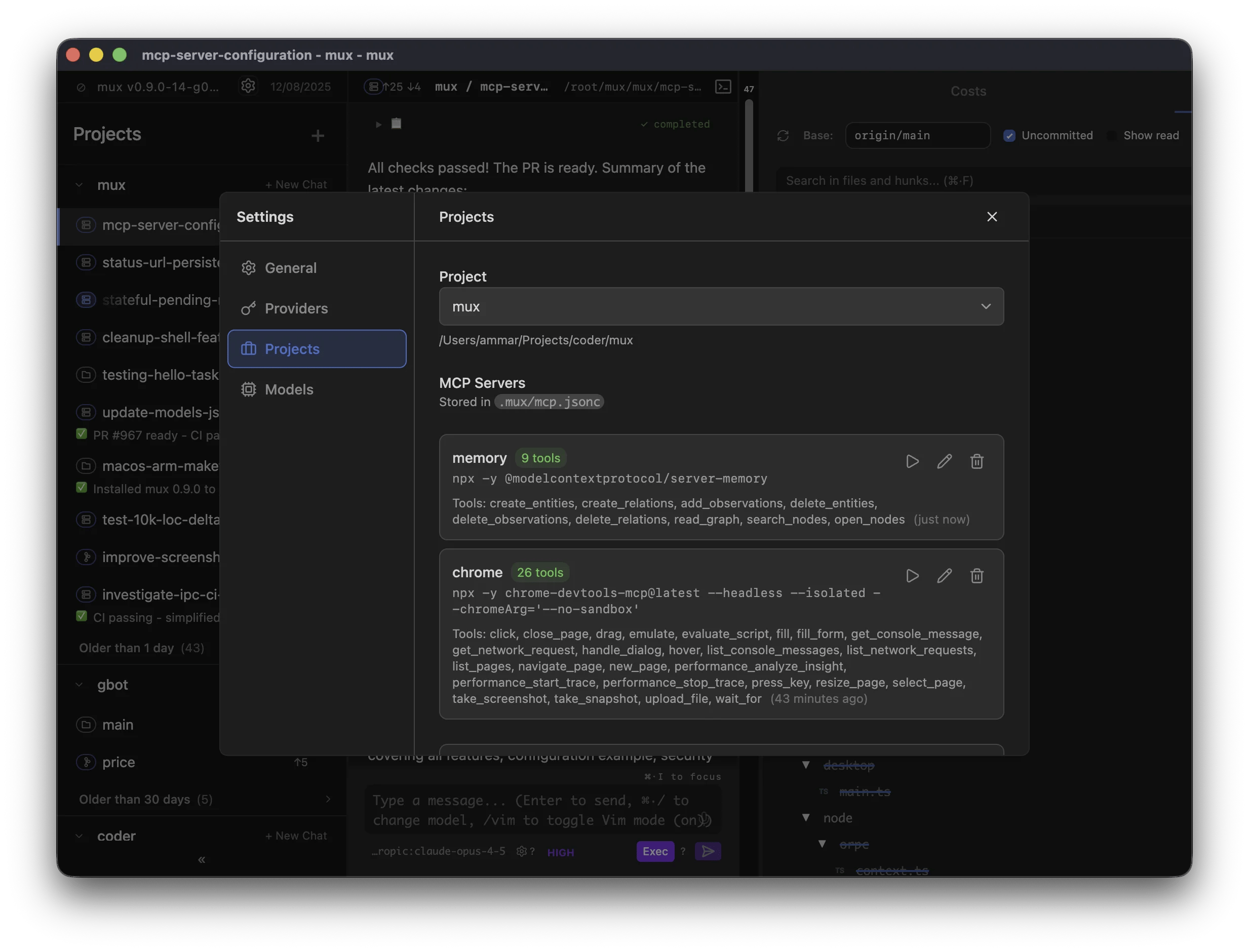
~/.mux/mcp.jsonc, repo overrides: ./.mux/mcp.jsonc):
Managing servers
Manage MCP servers in Settings → MCP (or by editing the config files directly).Scope
MCP servers have two scopes:- Configuration is global with optional repo overrides — Global config lives in
~/.mux/mcp.jsonc, with optional repo overrides in./.mux/mcp.jsonc - Runtime instances are per-workspace — Each workspace runs its own server processes, so state in one workspace doesn’t affect another
Per-workspace overrides
mux supports per-workspace MCP overrides (enable/disable servers and restrict tool allowlists) without modifying the shared config files (~/.mux/mcp.jsonc / ./.mux/mcp.jsonc).
These overrides are stored in a workspace-local file: .mux/mcp.local.jsonc.
- This file is intended to be gitignored (it contains local-only workspace preferences)
- When Mux writes this file, it also adds it to the workspace’s local git excludes (
.git/info/exclude) so it doesn’t get accidentally committed - Older mux versions stored these overrides in
~/.mux/config.json; mux will migrate them into.mux/mcp.local.jsoncon first use
Agent Plugins servers (experiment)
With the Agent Plugins experiment enabled (Settings → Experiments), MCP servers declared in an Agent Plugin’smcp.json also appear in server listings. Plugin servers are:
- Disabled by default — enable them per workspace via the Workspace MCP dialog; there is no global enable
- Read-only — they cannot be edited or removed, and are never written into
mcp.jsonc - Trust-gated — servers from a repo’s
.mux/plugins/.agents/pluginsonly appear once the project is trusted - Host-only — plugin servers are skipped for SSH and devcontainer workspaces
- Branch-following — in a workspace, repo plugin servers load from the workspace’s own checkout (matching skill discovery), while server identities stay stable across worktrees of the same project
PLUGIN_ROOT and PLUGIN_DATA environment variables; per-plugin data directories live under ~/.mux/plugin-data/.
Settings → Plugins installs plugins from git into ~/.mux/plugins (paste a git URL or owner/repo[@ref]). Before anything is written, a consent preview lists the plugin’s manifest, every skill, and every MCP server command line. Installs are pinned to the resolved commit; update checks compare the tracked branch or tag against the pinned commit and never auto-apply. Applying an update replaces the plugin directory wholesale — local edits to a managed plugin directory are discarded — and restarts that plugin’s running MCP servers. Uninstalling removes the directory, the registry entry, and the plugin’s per-workspace server overrides, but keeps ~/.mux/plugin-data/ unless you opt in to deleting it.
Behavior
- Hot reload — Config changes apply on your next message (no restart needed)
- Isolated — Server processes run in the workspace directory with its environment
- Lazy start — Servers start when you send your first message in a workspace
- Idle timeout — Servers stop after 10 minutes of inactivity to conserve resources, then restart automatically when needed
Finding MCP Servers
Browse available servers at mcp.so or the MCP servers repository.Troubleshooting
If a server fails to start:- Test the command manually — Run the command in your terminal to verify it works
- Check dependencies — Ensure required packages are installed (
npx -ydownloads on first run) - Use the Test button — Settings → MCP shows connection errors inline